
Hardware Specifications
| EX5601-T0 | |
|---|---|
| Vendor | Zyxel |
| Model | EX5601-T0 |
| SoC | MT7986a (filogic 830) |
| Ram | 1G |
| SFP | 1 2.5 GbE [1] |
| Ethernet | 3 1GbE, 1 2.5GbE LAN, 1 2.5GbE WAN[1:1] |
| XGMII | No |
| HSGMII | ✅ |
| SGMII | ✅ |
| Type | Router |
Zyxel EX5601-T0
List of partitions
| dev | size | erasesize | name |
|---|---|---|---|
| mtd0 | 20000000 | 00040000 | "spi0.1" |
| mtd1 | 00100000 | 00040000 | "BL2" |
| mtd2 | 00080000 | 00040000 | "u-boot-env" |
| mtd3 | 00200000 | 00040000 | "Factory" |
| mtd4 | 001c0000 | 00040000 | "FIP" |
| mtd5 | 00040000 | 00040000 | "zloader" |
| mtd6 | 04000000 | 00040000 | "ubi" |
| mtd7 | 04000000 | 00040000 | "ubi2" |
| mtd8 | 15a80000 | 00040000 | "zyubi" |
This router supports dual boot, and has two partitions for the firmware, ubi and ubi2.
To check the current active partition you can use the following command:
cat /proc/cmdlineThe result will be something like the following:
console=ttyS0,115200n1 loglevel=8 earlycon=uart8250,mmio32,0x11002000 rootubi=ubiIf rootubi=ubi, the active partition is mtd6.
If rootubi=ubi2, the active partition is mtd7.
Info
When you flash a new firmware via the web interface the router will automatically write the new firmware in the inactive partition, hence if the firmware upgrade is successfull it will automatically swap the boot partition at next reboot. If everything is ok you don't have to manually swap partitions
Serial interface
This router has the serial interface pins directly accessible on the board:
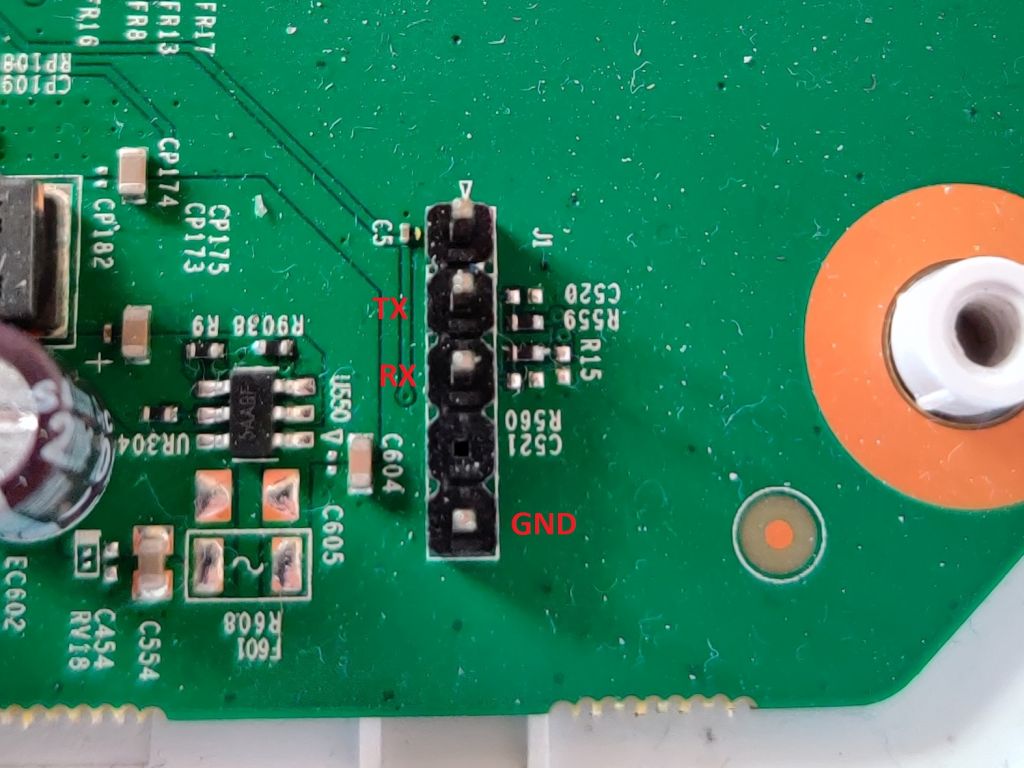
The serial console speed is 115200 bauds.
ZHAL (Zloader) access
The boot process of this router has multiple stages, long story short we have both u-boot and zloader (ZHAL).
When the router is powered-up u-boot is loaded and it will load zloader, the Zyxel proprietary boot manager.
Zloader allows to manually swap boot partitions (ubi and ubi2), recover the supervisor password and many additional useful (and dangerous) things.
By default zloader access is blocked.
Unlocking zloader
Warning
The following procedure is provided as-is, if you damage the device this community is not responsibile for any damage in any way.
- Open the router case and connect your usb-ttl adapter to the router as show in the picture.
- Open putty or any other serial capable software and configure it to use your COMX port with 115200 speed.
- Power up the router.
- While the router is booting at some point you will read the following:
Please press Enter to activate this console. - As soon as you read that press enter, type root and than press enter again (just do it, don't care about the logs scrolling).
- Most likely the router is still printing the boot log, leave it boot until it stops.
- If everything went ok you should have full root access:
root@EX5601-T0:/#- type the following command and press enter:
fw_setenv EngDebugFlag 0x1- Reboot the router.
- As soon as you read
Hit any key to stop autoboot:press Enter. - If everything went ok you should have the following prompt:
ZHAL>You have successfully unlocked zloader access, this procedure must be done only once.
Info
There is an alternative procedure to achieve the same end result. Flashing the firmware which gives you root access via ssh and you give the same fw_setenv command from point 8. The USB to serial adapter is still needed to access ZHAL
Dumping supervisor password
Warning
The following procedure is provided as-is, if you damage the device this community is not responsibile for any damage in any way.
Info
The supervisor user is the most powerful user that can be used from the web interface. The supervisor password is written in the nand and it's encrypted. To dump the password you must first complete the Unlocking zloader procedure
- Open the router case and connect your usb to serial adapter.
- Open putty or any other serial capable software and configure it to use your COMX port with 115200 speed.
- Power up the router.
- As soon as you read
Hit any key to stop autoboot:press Enter. - Type the following command and press enter to read the supervisor password:
atck- The supervisor password will be printed in clear text and can be used on the zyxel webgui.
- You can reboot the router by typing the following command and press Enter:
atsrManually swapping the boot partition
Warning
The following procedure is provided as-is, if you damage the device this community is not responsibile for any damage in any way.
Info
To swap the boot partition you first have to complete the Unlocking zloader procedure
- Open the router case and connect your usb to serial adapter.
- Open putty or any other serial capable software and configure it to use your COMX port with 115200 speed.
- Power up the router.
- As soon as you read
Hit any key to stop autoboot:press Enter. - Type the following command sequence to swap the boot partition.
atbt 1  # unlock zhal write
atsw    # swap boot partition
atsr # reboot the router- The router will boot from the new active partition (ubi or ubi2 depending on the previous active partition).
- Check if the active partition has changed with the following command:
cat /proc/cmdlineUnlocking u-boot access
Warning
The following procedure is provided as-is, if you damage the device this community is not responsibile for any damage in any way.
Info
To unlock u-boot access you first have to complete the Unlocking zloader procedure
Warning
Having full u-boot access can be very dangerous, with great power comes great responsibility.
Up to today a strange combination of actions must be completed in a special sequence to access the u-boot CLI:
- Open the router case and connect your usb to serial adapter.
- Open putty or any other serial capable software and configure it to use your COMX port with 115200 speed.
- Power up the router.
- As soon as you read
Hit any key to stop autoboot:press Enter to access the ZHAL command line. - Type the following command and press enter:
atgu- Apparently that command doesn't do anything and the router will reboot itself.
- Again for the second time you will read
Hit any key to stop autoboot:, press Enter again to access ZHAL again. - Type the following command again and press enter:
atgu- You should now have entered the u-boot command line interface:
MT7986>Flashing a firmware or downgrading firmware
Warning
The following procedure is provided as-is and if anything goes wrong you will likely need to open the router case and attach a USB serial adapter to the router to recover it. This community is not responsible of any damage you cause by following these procedures.
- Access the router via ssh or telnet with admin user (admin password is printed on the back of the router).
- Disable firmware version check and model check by running the following commands.
zycli fwidcheck off
zycli modelcheck off- You can close the ssh console, do not reboot the router.
- Open the router web interface and in the maintenance/firmware upgrade section select the "Restore Default Settings After Firmware Upgrade" option.
- Select "Choose file" to select the firmware file you want to upload and click Upload.
- The router will automatically reboot and should get back up on 192.168.1.1
Firmware Version V5.70(ACDZ.0)C0 no-brand
Here is a no-brand firmware compiled starting from Zyxel provided OpenSource package under GPL license (link at the bottom of this page) plus the following modifications that you can track on the following repo: https://github.com/pameruoso/zyxel-ex5601t0
- Added start-up script to reset and enable root access via ssh. The script reads the device serial number and resets the root password with that. Do not try to reset the root password because that will last until next reboot.
- the
/binpath containssfp_wan.sh_windandcheck_sfp_link.sh_windscripts which are very similar to the standardsfp_wan.shandcheck_sfp_link.shscripts. If everything works with the original ones do not swap them. If you want to allow 2.5gbit HSGMII with the Technicolor AFM0003 SFP stick you need to swap and enable the_windscripts. - Additional packages installed:
mtr,htop,openvpn,wireguard.
Info
The OpenVPN and Wireguard functionalities will not be directly usable in the Zyxel web interface, they are not supported. If you want to setup a VPN with either protocol you must know how to use the command-line and do your own setup
Warning
Do not try to install packages directly from the internet with opkg update/install, the default repositories are not working and, if you edit them, you'll most likely end up breaking the partition overlay
OpenWrt firmware
This router has native OpenWrt support starting from the following git commit
You are free to clone the git code and build your own OpenWrt firmware or use the OpenWrt firmware builder.
Warning
Carefully read the installation instructions from the git commit link above!
The OpenWrt firmware has the following working features out of the box:
- 3 Gbit LAN ports
- Wi-Fi AX6000: 5Ghz 4x4 ax + 2.4GHz 4x4 ax
- Zyxel partitioning for coexistance with Zloader and dual boot
- Leds
- Reset button
- Serial interface
- USB port
- LAN RJ45 2.5 Gbit port
- WAN RJ45 2.5 Gbit port
- WAN SFP port only works after exporting pins 57 and 10 (
gpiobase411). There must also be a cable with a link active on the WAN 2.5 Gbe port to make the SFP work. This is due to missing support into the phy-link code of the Mediatek ethernet SoC.
To workaround the missing phy-link support, some modifications to the DTS are needed. Setting the gmac1 node to fixed link 2500Base-X gives the possibility to hot-swap the SFP/RJ45 port.
The following repo contains a proper example: EX5601-T0 fixed SFP link git repo you can apply the patch to the official OpenWrt repo.
Info
It is highly recommended to use the OpenWrt official builds instead of this fork because the latter is not updated that often, still if you want to use the SFP you can insert it into a media converter and use the 2.5Gbe RJ45 port with the official build.
Here is a flashable bin file based on OpenWrt v23.05.0 Stable with the mod to swap SFP/RJ45. This sysupgrade.bin already contains the zyfwinfo file for flashing with zloader.
EX5601-T0_Openwrt-v23.05.0-stable_fixedlink